
Wirex provides a convenient and secure way to access your account with the option to enable Account PIN or Face ID authentication on your mobile device. Here's a step-by-step guide on how to enable this feature:
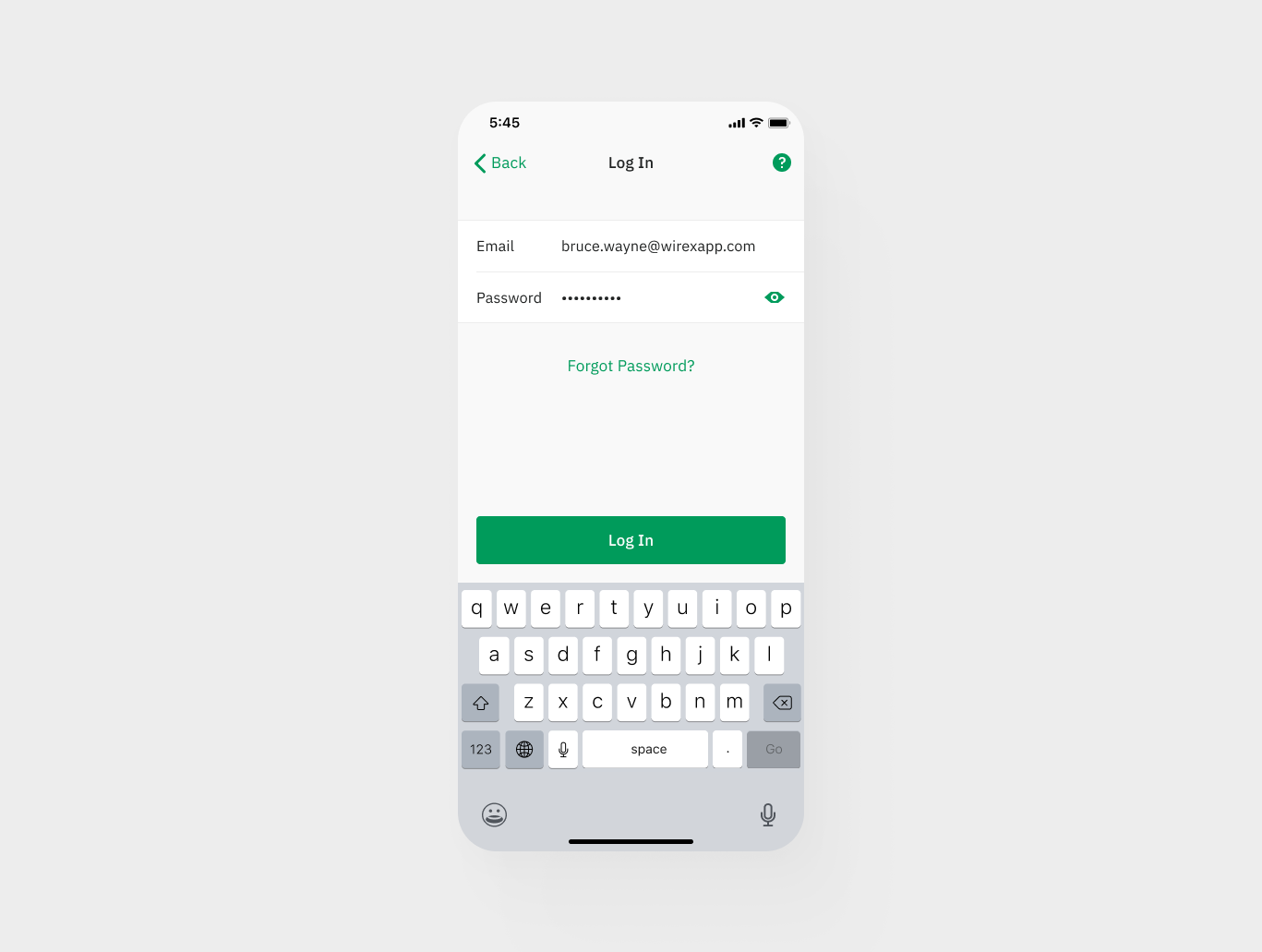
Step 1: Open the Wirex app
Start by opening the Wirex app on your mobile device.
Step 2: Go to ‘Preferences’
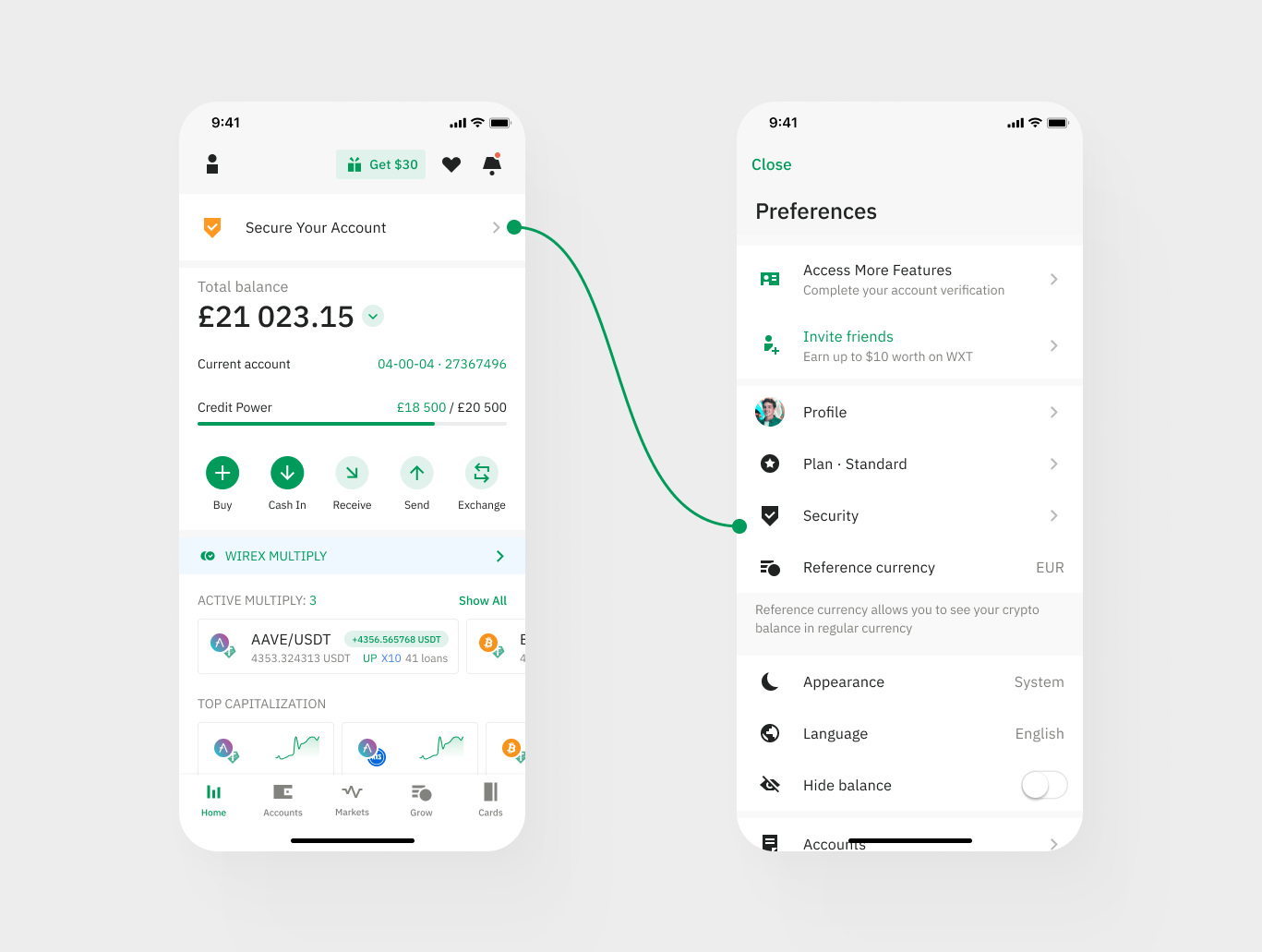
Once you have logged in to your account, navigate to the ‘Preferences’ icon in the top left of your ‘Dashboard’. On the website, this can be found on the top menu.
Step 3: Select ‘Security’
Select the ‘Security option’ to access the security settings.

Step 4: Set up your Account PIN
Enter a 4-digit code to set up your Account PIN. You will be asked to confirm the Account PIN to complete the setup.
Use this Account PIN on all your devices.

Step 5: Enable Biometrics
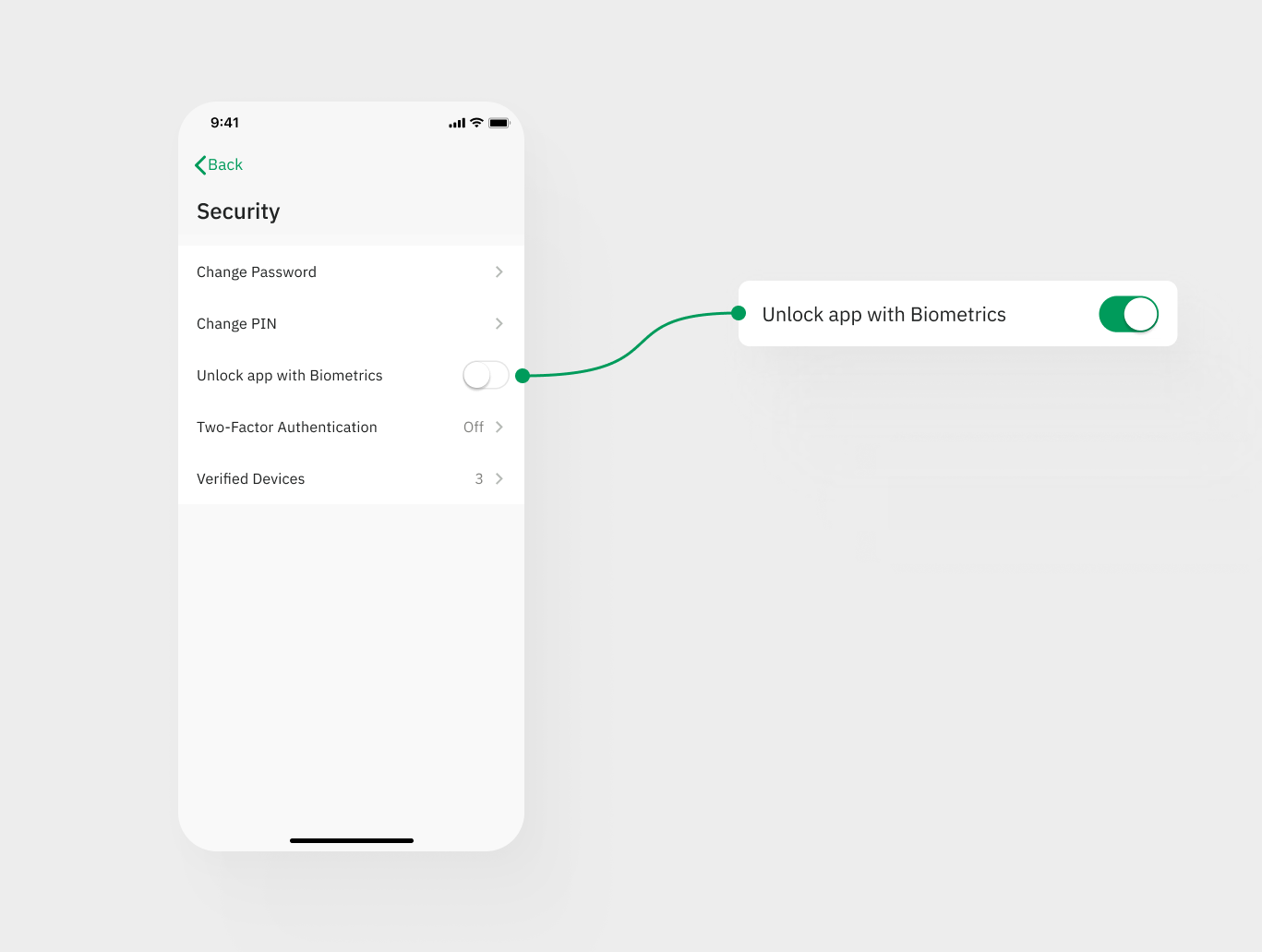
Scroll down to the section labeled "Unlock app with Biometrics" and toggle the switch to "on" to enable this feature.
Step 6: Set up your fingerprint/Face ID
You will then be prompted to set up your fingerprint or Face ID. Follow the on-screen instructions to capture an image of your face for Face ID.
Step 7: Enjoy quick and secure access
Once enabled, you can log in to your Wirex account quickly and securely using either an Account PIN, fingerprint or Face ID. This feature saves time and provides an additional layer of security for your account.
In conclusion, enabling Account PIN/Face ID on your Wirex account is a straightforward process that enhances the security of your account and offers you a convenient way to access it. Follow these steps to set it up and enjoy quick and secure access to your Wirex account.